
There are 3 steps involved. Here describes the steps to create a dynamic date stamp with transparent background in Adobe Acrobat stamps and in Windows 10.
- Create a blank word doc
- Create a custom blank stamp
- Add data on blank stamp
1. Create a blank word doc
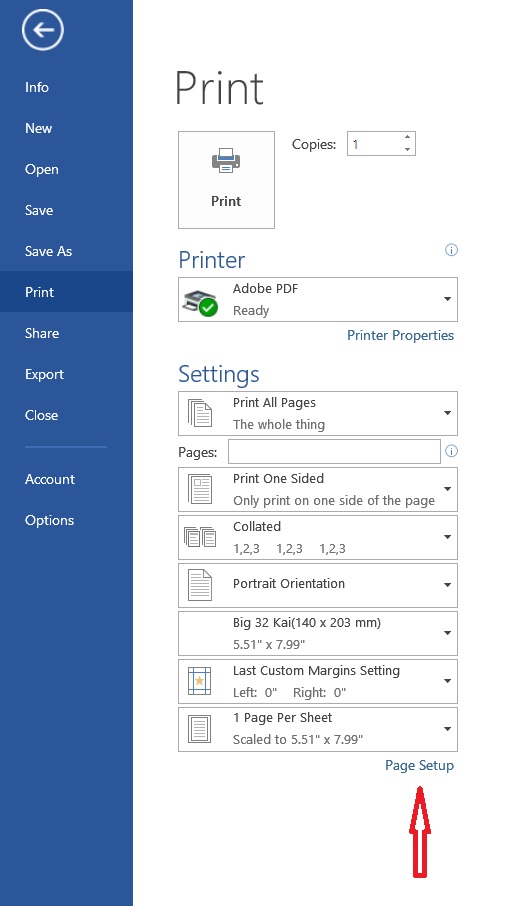
Open a word document. Change the page setup.
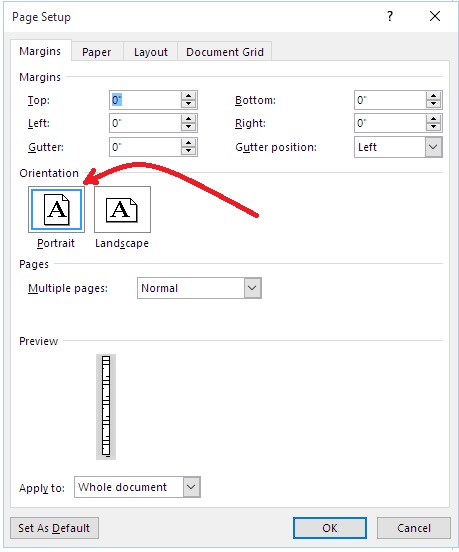
Select portrait
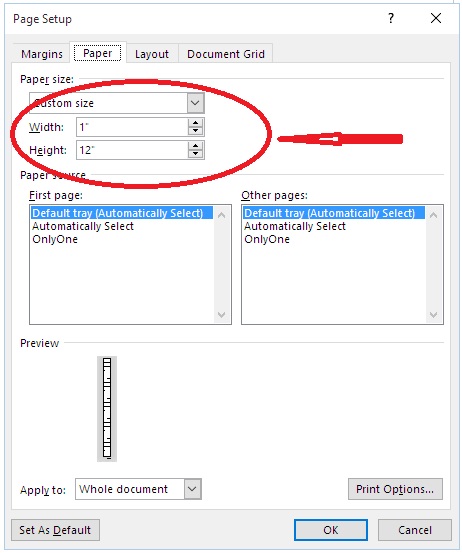
Choose the following paper size
Save the word document on the desktop.
2. Create a custom blank stamp
Open any PDF file, select comment/stamp icon/custom stamps/create custom stamp
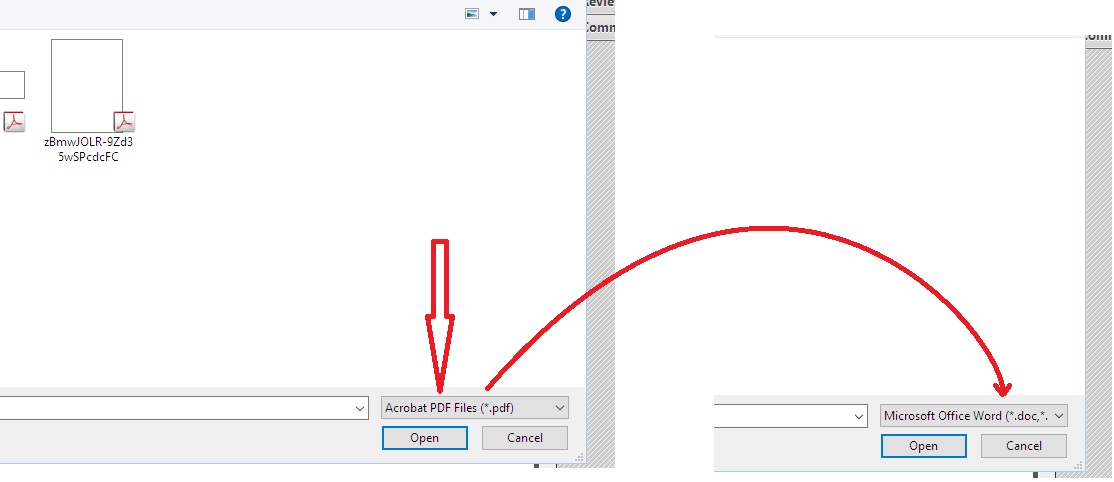
Click browse, change the file type from Adobe PDF Files to Microsoft Office Word

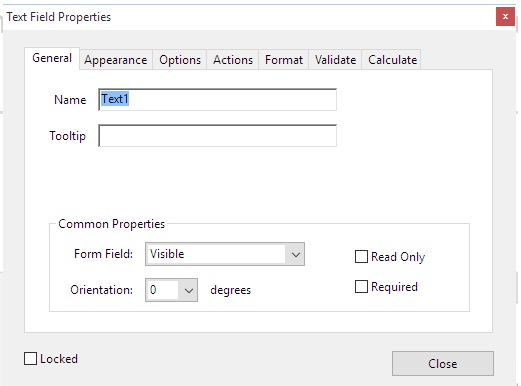
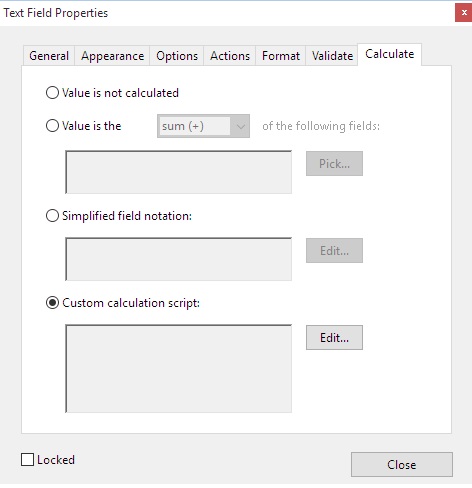
add the following sentence:
event.value = (new Date()).toString();
AFDate_FormatEx(“dd mmm yyyy”);
(Accidental discovery: The quotation “” on the above formula is actually the one on the right of :. For some unknown reason, the quotation changes its form on display. The copy and paste method would not work in adobe, the quotation must be manually typed.)
and ok, save and close the file.
By now the dynamic date stamp is available in the stamp icon, in the directory chosen. However any changes to manage/edit the stamp name would nullify the dynamic properties of the stamp. To prevent this from occurs, copy the file created just now and paste it to the following directory.

As the file name would be irregular, rename it to an easily identified file name. By now, the new stamp would be available within the stamp icon but is not possible to manage or edit.
The date stamp will overlap the original text without covering it.

ps: Even though the dynamic stamp placed in (….Annotations/Stamps/ENU)is safe, subsequent amendment to the other stamps that were placed in the same category as the dynamic date would be impossible. To avoid this, first create the dynamic date stamp alone in the intended category. Moved this single stamp file from (Acrobat/10.0/Stamps) to (….Annotations/Stamps/ENU). Then only create other stamps files under the same category as dynamic date stamp. There is no need to move this newly created file from its original directory to the dynamic date stamp directory, as this would facilitate the subsequent amendment to the stamps without nullifying the dynamic date stamp.